Export Strong App Data to CSV and Move It to a New App
To export Strong app data, Strong's help center says to open the in-app Settings and select Export Strong Data on iPhone or Export Data on Android. You get a spreadsheet-friendly CSV that can't be imported back into Strong, so keep one untouched copy, check each lift's weight unit, then import a small test file first.
On this page
Export Strong app data in 2 steps and email the CSV
Strong's help center gives the export as two steps, with a different label on each platform:
- Open Settings. Go to the in-app Settings in Strong.
- Pick the export. Select Export Strong Data on iPhone, or Export Data on Android.
The two store listings name different places for the file. Strong's App Store listing says you can export all of your data to Notes or Email in CSV format. Its Google Play listing says to Email. On either phone, email it to yourself, then save the CSV file from that email to cloud storage or a computer.
| As of November 2026 | iPhone | Android |
|---|---|---|
| Menu | Settings, then Export Strong Data (help center) | Settings, then Export Data (help center) |
| Where the file can go | Notes or Email (App Store listing) | Email (Google Play listing) |
| Format | CSV | CSV |
| Back into Strong | No (help center) | No (help center) |
Strong documents this export in its help center and on both store listings, and the listings say it backs up your data automatically with Cloud Sync.
Quick check: the help article was last updated in April 2021, and menus move between versions. If a label looks different, look for the export in Strong's in-app Settings. Then check the file's earliest and latest dates before you trust it.
The export is one-way, so keep an untouched copy
Strong's help center says exported files can't be imported back into Strong. Treat the CSV as a copy that only travels outward, and protect it before you open it.
- Name it with the date. For example, strong-export-2026-11-19.csv, so you know which sessions it covers.
- Store the original. Put it in cloud storage and never edit it. Make a second copy to work on.
- Change nothing in Strong yet. Leave your Strong history as it is until the three-lift check near the end passes.
Spreadsheets can change a CSV when they open it. A date can flip to another country's order, and a weight like 102.5 can become text. Save over the original and that change becomes your history.
Lifter Log imports but has no export, so the original file is also your backup after the move.
Check the file's weight unit lift by lift
Strong's listings say it supports weights in pounds, kilograms or a mix of both. So one remembered set proves the unit for that lift only.
Open your working copy in Google Sheets and check one set on each of your main lifts. If it has a row of column names, freeze it first (View, then Freeze, 1 row), so every sort below leaves it on top.
Here is the check on example lifts, not a real lifter's log:
| Lift | A set you remember | The file shows | Unit in the file |
|---|---|---|---|
| Bench press | 185 lb × 5 | 185 × 5 | Pounds |
| Back squat | 225 lb × 5 | 225 × 5 | Pounds |
| Dumbbell row | 32.5 kg × 10 | 32.5 × 10 | Kilograms |
Two lifts read in pounds and one in kilograms. Set Lifter Log to pounds before you import, so its numbers read like the file's. You can switch to kg any time later, and your whole history converts with you. Then convert the odd lift in your working copy: 32.5 kg × 2.2046 = 71.6 lb.
To convert in Sheets, first sort the whole sheet by the exercise column (Data, then Sort sheet, A to Z), so that lift's rows sit together.
Then, beside that lift's first row, type the formula with that row's number: if its first row is 40, type =ROUND(D40*2.2046, 1), with D as your weight column. Fill it down that lift's rows only, then paste the results over the old weights as values.
Common mistake: reading a 2.2× gap as a typo. If the file shows 83.9 for a bench set you remember as 185 lb, that lift is in kilograms: 185 ÷ 2.2046 = 83.9.
Import a small test file before the rest
A test import of a few weeks is quick to check, and a mistake in it leaves the rest of your history untouched. Before you start, sort your working copy by the exercise column, A to Z, and give each lift one name, as in how to log workouts.
- Make the test file. Sort the working copy by date, newest first. Copy the row of column names, if your file has one, and the last four weeks of rows into a new sheet. Save it as CSV.
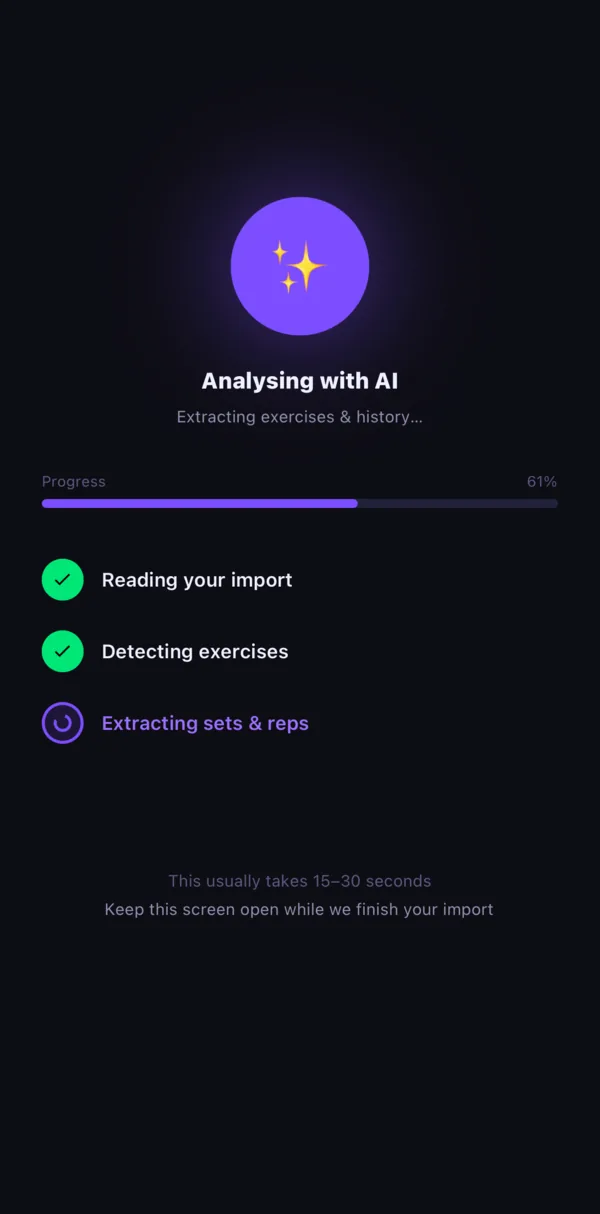
- Import it. In Lifter Log, open the AI import and upload the test file. Dated sets and reps come in as progress.
- Check it. Run the three-lift check in the next section on those four weeks.
- Import the rest. Save the row of column names, if your file has one, and every row older than the test file's earliest date as a second CSV, and import that. No row goes in twice. Then run the three-lift check again.
Importing needs a connection, and you get about 10 imports a day, so both files fit in one day. Each imported exercise is matched to a library of about 900 moves, so it arrives with reference pictures.
Check three lifts against the file
Pick your three most-logged lifts. For each one, compare two numbers between the file and Lifter Log: how many sessions it has, and its last top set.
On a computer, a Google Sheets pivot table counts sessions for every lift at once. Select your data, choose Insert, then Pivot table. Put the exercise column in Rows and the date column in Values, summarised by COUNTUNIQUE.
Coach's tip: a session in Lifter Log is the sets saved on one day, so count days. If one session shows up as several, your date cells carry a time. Add a column with =INT(A2), with A as your date column, format it as a date and count that instead.
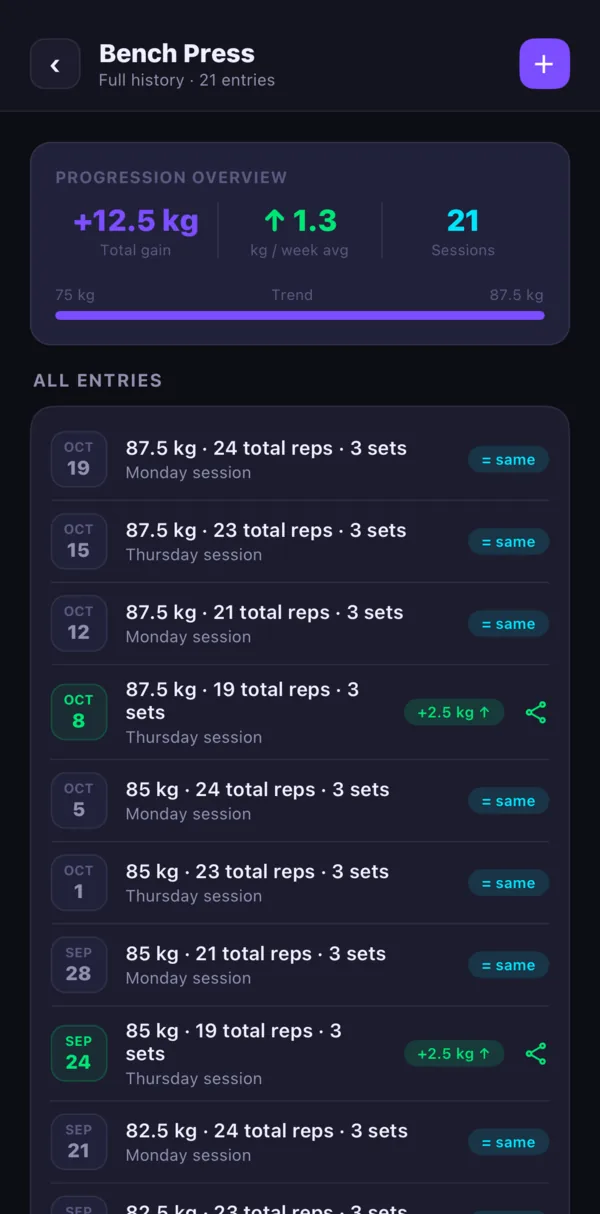
In Lifter Log, open each exercise's full history, which lists every dated session. Here is the check after both imports, on the same example lifts:
| Lift | Sessions in the file | Last top set in the file | In Lifter Log |
|---|---|---|---|
| Bench press | 96 | 185 lb × 5 | 96 sessions, 185 lb × 5 |
| Back squat | 91 | 225 lb × 5 | 91 sessions, 225 lb × 5 |
| Dumbbell row | 64 | 71.6 lb × 10, converted | 64 sessions, 71.6 lb × 10 |
All three match, so the move passes. When a number is off, these two causes come first:
- A top set about 2.2 times too high or low. A lift read in the wrong unit. Caught on the test file, that's four weeks to edit in the exercise's history; convert the lift in your working copy before the second file goes in.
- Fewer sessions than the file. Compare the dates in the file with the dates in the lift's history to find the gap. Then check whether that session landed under a second exercise, a sign the lift had two names in the file.
What may stay behind in the file
Strong records some things Lifter Log has no place for. If your file carries any of these, here is where each one stands:
- Set tags. Strong's listings say you can tag sets as Warm Up, Failure or Drop Sets. Lifter Log saves each set as a weight and reps. Open one session where you tagged warm-ups and see how they came across: warm-ups saved as sets add to your total reps, not to your top set.
- Supersets. Strong can group exercises as supersets. Lifter Log has no superset grouping, so each exercise stands on its own.
- Cardio. Strong logs cardio as well as strength exercises. Lifter Log is lift-only, so runs or rides stay in your file.
- Body weight. Strong has a tracker for your weight and other vitals. Lifter Log has no weigh-in log. Tape measurements go in Analytics, then Body, as in how to track body measurements.
- Progress pictures. Strong's App Store listing says you can add progress pictures to workouts. Lifter Log has no progress photos, so keep them where they are.
- Routines. Strong's help center says you can share a single workout or template through a share link. If your routines aren't in the file, type or copy a routine's exercises, sets and reps into Lifter Log's import, or pick up to 8 photos of it. The AI builds your workouts, schedule included.
With your history in place, how to track progressive overload shows how to use it next session. For formulas that turn the rows into weekly totals, see the workout tracker spreadsheet guide, and for the same move from a different tracker, exporting your history from another app.
How we checked
On November 19, 2026, we read Strong's help center article on exporting workout data, last updated April 27, 2021, plus Strong's US App Store and Google Play listings. The labels above are the ones those pages give. Apps change their menus, so check the help center if a step looks different.
Source: Strong help center, App Store and Google Play listings, Nov 2026
Strong is a trademark of its owner; Lifter Log is not affiliated with the Strong app.